Perubahan Taskmanager Dari Windows 3.0 Hingga Windows 8

Halo Semuanya Masih Sehat Kan Harus Sehat Dong Maksa Ya wkwkwkwk Ya Begitulah Pada Malam Minngu Yang Menyenangkan Bagi Yang Memiliki Pacar Dan Biasa Bagi Para Jomblo Khususnya Saya Ini Saya Akan Share Pendapat Saya Tentang Microsoft Corporation Dan Mengajak Sobat Untuk Melihat Lihat Taskmanager Windows 3.0 Sampai Windows 8


Langsung Saja Wastra 7 Presents TASKMANAGER WINDOWS 3.0


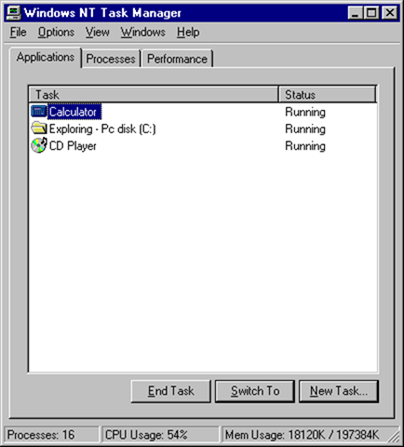
Seperti dilihat dari gambar diatas, tampilan Task Managernya sangatlah simpel. Berguna hanya untuk membunuh proses yang tidak diinginkan.

WINDOWS NT TASKMANAGER


Gambar diatas merupakan Task Manager di Windows NT. Terlihat lebih modern. Tugasnya bukan saja hanya membunuh proses, tetapi dapat melihat seberapa proses tersebut berada di RAM. Bisa dilihat pada tab "Performance".

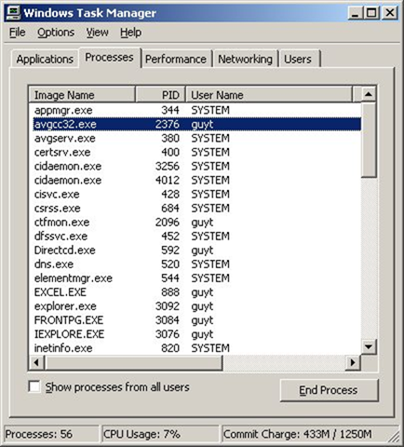
WINDOWS XP TASKMANAGER


Karena Task Manager di Windows NT hingga Windows 2000 tidak terlalu jauh berbeda, kita beralih ke Windows XP Task Manager. Gambar diatas merupakan Task Manager Windows XP. Terlihat, ada 2 tab baru yang dimasukkan, yaitu "Networking" dan "Users". Networking berguna untuk melihat koneksi Internet yang berjalan. Sedangkan Users, berguna untuk melihat pengguna komputer yang aktif.

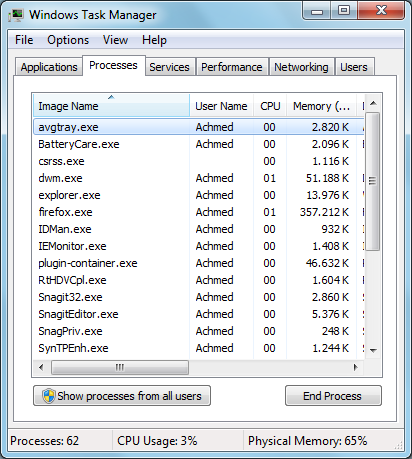
Yang Saya Banggakan Windows Seven TASKMANAGER


Gambar diatas adalah tampilan Task Manager Windows Vista dan Windows 7. Terlihat, ada 1 tab baru lagi, yaitu "Service". Berguna untuk melihat service apa saja yang berjalan.

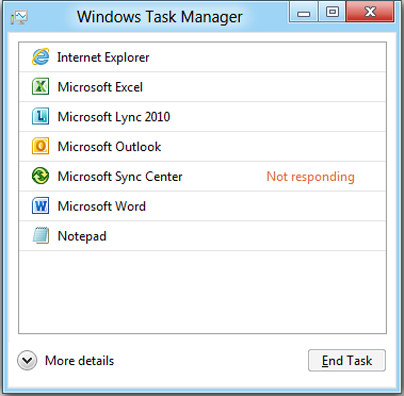
YANG SAYA INGIN GUNAKAN WINDOWS 8 TASKMANAGER
( Doa'in Ya Biar Bill Gates Mati Dan Windows Dibagikan Secara Gratis ) 


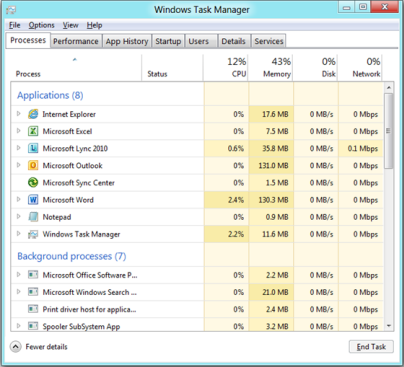
Gambar diatas adalah tampilan Task Manager untuk Windows 8. Terlihat sangat simpel. Tapi, jika kamu mengklik "More details", maka Windows 8 akan memunculkan informasinya secara lengkap, rapi, mudah dilihat dan dimengerti. Seperti dibawah ini:


Sangat lengkap sekali. Dan tambahan tab baru, yaitu "Startup". Berguna untuk melihat aplikasi apa saja yang berjalan saat Windows dihidupkan.


Kesimpulan
Microsoft terus berinovasi agar para penggunanya dapat dengan nyaman menggunakan Task Manager. Hingga Task Manager yang baru di Windows 8 sangat sempurna dan sangat detail.


Jadi Janganlah Membajak
READMORE
 

nProtect Gameguard Personal 3.0


Halo Sobat Semua !! Masih Sehat Kan ?? Komputernya Juga Sehat ?? Nanya Mulu Sih wkwkwkwkwk Pada Hari Ini Saya Akan Share Sebuah Antivirus Luar Negeri Yang Dapat Membersihkan Virus Yang Ada Di Komputer Anda Dan Menjaga Kualitas Gaming Komputer Anda ( Padahal Punya Saya Gak Kuat Main Game )


Fitur Pengelolaan Informasi Pribadi Yang Lebih Kuat

  • Melindungi produk dari perubahan atau penghapusan pilihan yang tidak perlu melalui fitur password administrator.


Hapus Permanen dan Enkripsi Aman

  • Enkripsikan atau hapus secara permanen file dengan informasi sensitif di dalamnya untuk menghindari kebocoran informasi.


Perlindungan Terhadap Malware

  • Scan dan hapus Rogueware / Grayware yang menampilkan deteksi palsu dari infeksi malware dari pengguna yang mengakibatkan tagihan atau pemasangan langsung sebuah program tanpa sepengetahuan pengguna.


Pengumpulan dan Laporan Contoh Malware Otomatis

  • Secara otomatis mengumpulkan dan mengirim file yang terindikasi malware dalam sistem pengguna.
  • Melaporkan file yang "Gagal Dibersihkan" setelah gagal membersihkan file
  • Menyediakan rangkuman dari laporan kepada pengguna


  • Melindungi sistem dari infeksi malware dengan memonitoring pengeksekusian, penggandaan, pemindahan file serta tindakan lainnya.
  • Secara otomatis memblok ActiveX Controls diinstal tanpa sepengetahuan pengguna.
  • Menghapus dengan sempurna ancaman tersembunyi dengan melakukan scanning memori secara periodik.
  • Memastikan sistem administrasi dan penggunaan minimal CPU serta memori yang stabil melalui teknik Multi-Threading.


  • Tachyon Engine, dikembangkan secara menyeluruh dari INCA Internet, menyediakan respon efisien terhadap malware melalui scanning dan perawatan.
  • Bekerja sama dengan engine terkemuka nomor 2 secara global (ICSA Labs, CheckMark, VB Certified) yang melakukan scanning 100% dari virus paling berbahaya.
  • Deteksi Proaktif yang melindungi sistem dengan melakukan scanning dari malware tak dikenal.


  • Melindungi diri dari infeksi malware dan perubahan/perusakan yang disengaja. Saat terinfeksi, program ini akan melakukan scanning terhadap dirinya sendiri dan memperbaikinya secara otomatis.
  • Saat file penting dari sebuah program, seperti engine atau pola anti-virus, rusak, program akan menyembuhkan dirinya sendiri dan menjaga keamanan sistem.

  • 70 ribu update-pola setiap bulannya dan merupakan database malware terbesar di Korea.
  • Mendukung update harian dan update darurat untuk perlindungan ancaman malware yang efisien.
  • Siap terhadap situasi darurat dari virus baru serta kode zero melalui monitoring 24-jam di seluruh dunia.

W0oOw Ternyata Banyak Juga Fitur Dan Kelebihannya Ya Dan Itulah Sebabnya Wastra-7 Memilih Antivirus Ini Sebagai Antivirus Saya

Download | Status : Used ( Windows 7 Ultimate ) | Link : Tested

Regards Wastra-7

Komentarlah Walau Itu Hanya Ngejunk


READMORE
 

Tema Untuk Chelsea FC Boys

Halo Sobat Semuanya !! Bagaimana Kabarnya ? Sehat Selalu Kan ?
Pada Hari Yang Cerah Sekaligus Hari Terakhir Dalam Liburan Sekolah Saya Ini
Saya Akan Share Theme Yang Menurut Saya Patut Untuk Anda Coba
Ya Tema Itu Adalah CHELSEA FC Klub Sepakbola Favorit Saya !!
Tema Ini Hanya Bisa Digunakan Di Windows Tujuh

Tanpa Basa Basi Nih SS Nya
Yang Mau Download Ke TKP

Regards Wastra Creativity

Komentarlah Walaupun Itu Hanyalah Ngejunk 
READMORE
 

Cara Bunuh Diri Paling Ampuh Sejagat ( Ngakak Inside )

Biar bagaimana pun, bunuh diri adalah sesuatu yang dilarang apalagi dari segi agama jelas-jelas mengharamkannya, namun di sini kita tidak akan melihat adegan bunuh diri sesungguhnya, melainkan hanya gambar-gambar konyol yang siap mengocok perut kita.. Mari kita simak...


Sampai kapan ya tuh org mati? Secara dia mesti nungguin tu pohon tumbuh smp gede...


Wah, bahaya tuh kalo smp terlepas barbelnya...


Tinggal klik remotenya, tertutup disknya, dan innalillah, terpenggal kepalanya...


Nah, boleh juga nih idenya... Langsung terbelah jadi dua tu badan...


Ternyata, roket bisa juga digunakan sbg sarana bunuh diri...


Gantung diri versi Big Ben (jam raksasa di Inggris), patut dicoba...


Walau caranya ribet, tapi bunuh diri jenis ini sangat efektif...

Nah, itulah beberapa cara bunuh diri paling konyol yang pernah ada... Kalo agan ada yang berniat bunuh diri, cara-cara bunuh diri di atas bisa jadi referensi... Bunuh diri yang kreatif dan inovatif... Beda dari bunuh diri tipe sekarang, yang kalo gak gantung diri atau langsung minum baygon...


Komen Ya Br0 Br0 Semua Biar Gak Sepi 

Wastra-7
READMORE
 

Tema Untuk Pencinta Windows

Bagi Para Pecinta Windows 7 Seperti Saya Hendaknya Menggunakan Tema Yang Sudah wastra-7 Siapkan Untuk Sobat Semua

SS :

Silahkan unduh temanya disini
READMORE
 

Yang Disembunyikan NASA Tentang Mars


Pada tahun 1976, Amerika Serikat menghabiskan jutaan dolar untuk mengirim wahana Viking Lander I ke planet Mars. Tepat pada pukul 2 siang tanggal 21 Juli 1976, Departemen Jet Propulsion Laboratory (JPL) NASA menerima foto pertama yang berhasil diambil dari Viking. Foto tersebut menunjukkan planet Mars memiliki langit berwarna biru yang indah, bukan merah seperti yang kita kenal selama ini.


Planet Merah, itulah julukan yang diberikan orang selama puluhan tahun kepada planet Mars. Hal ini dikarenakan foto-foto yang dirilis NASA menunjukkan warna merah pada hampir setiap unsur di planet itu. Mars juga digambarkan sebagai planet yang tidak ramah dengan badai debu berwarna merah. Karakteristik ini juga telah digambarkan di beberapa film science fiction seperti "total recall" dan "red planet".

Namun ternyata planet merah tidaklah semerah yang kita bayangkan.

Pada tanggal 10 Januari 2004, departemen JPL NASA yang bertanggung jawab atas wahana spirit rover menyelenggarakan konferensi pers di Pasadena, California. Pada konferensi itu, mereka menunjukkan sebuah foto Mars terbaru yang diambil oleh wahana spirit, Foto Mars dengan langit berwarna biru.


Ini mengejutkan ! Pada tahun-tahun sebelumnya, NASA hanya merilis foto Mars dengan langit berwarna merah. Setelah konfrensi pers JPL itu, NASA memberikan alasannya :

"Jika pada saat wahana mengambil foto sedang terjadi badai debu di Mars, maka foto akan menjadi merah".

Dengan pernyataan ini, NASA mengakui bahwa Mars memang memiliki langit berwarna biru seperti bumi ! Namun anehnya, mengapa selama ini NASA hanya merilis foto Mars dengan langit merah? mungkinkah ada sesuatu yang ditutup-tutupi ? Dan mengapa baru tahun 2004 NASA mengungkapkan semuanya ?

Menurut sebuah buku, NASA memang sengaja merahasiakan fakta tersebut.

Buku yang saya maksud adalah buku yang berjudul "Dark Mission : The Secret History of NASA" karangan Richard C Hogland dan Mike Bara. Mereka menceritakan bahwa NASA dengan sengaja telah mengubah warna langit pada planet Mars.

Pada tahun 1976, ketika foto pertama Mars datang dari Viking, dunia bisa melihat melalui televisi bahwa Mars ternyata memiliki langit berwarna biru ! Namun, beberapa waktu kemudian, foto resmi yang beredar adalah Mars dengan langit berwarna merah. Menurut NASA, foto Mars yang menunjukkan langit berwarna biru adalah foto yang mengalami kesalahan filterisasi warna. Dengan kata lain, kesalahan teknis. Namun tidak demikian menurut Richard Hogland dan Mike Bara.

Menurut mereka, dua jam setelah foto pertama dari Viking tiba, seorang teknisi NASA tiba-tiba mendapat perintah dari Administrator NASA, Dr. James Fletcher, untuk menghancurkan semua negatif film yang menunjukkan langit biru pada planet Mars. Gambar-gambar yang lain kemudian diubah menjadi hampir merah total untuk menunjukkan seakan-akan tidak ada kehidupan di Mars.

Contohnya foto dibawah ini. Foto disebelah kiri adalah foto yang dirilis oleh NASA mengenai keadaan planet Mars. Pada foto tersebut terlihat warna bendera Amerika mengalami distorsi. Para peneliti kemudian memperbaiki warna foto tersebut dengan menggunakan bendera Amerika sebagai patokan. Dan hasilnya adalah foto disebelah kanan. Mars memiliki langit biru !


Tindakan administrator NASA yang memerintahkan penghancuran foto asli Viking I menimbulkan banyak pertanyaan. Mengapa NASA begitu ngotot menyembunyikan keberadaan langit biru tersebut dari dunia ? Apakah ada sesuatu yang lain ikut terpotret pada foto yang dihancurkan tersebut ?

Sayang sekali, pertanyaan ini belum terjawab hingga sekarang. Namun konon para astronom di teleskop Hubble telah lama mengobservasi bahwa Mars memang memiliki langit berwarna biru.

Walaupun begitu, beberapa ilmuwan tetap membela NASA. Menurut mereka, NASA tidak mengubah warna langit. Perbedaan warna terjadi karena proses filterisasi yang tidak sempurna pada wahana penjelajah Mars.

Ya, mungkin saja mereka benar. Namun bagi penganut teori konspirasi, tindakan NASA merahasiakan hal tersebut karena NASA ingin menutupi fakta bahwa ada kehidupan di planet Mars !

Sayang. Tidak ada yang bisa mengetahui pasti kebenarannya. Namun, setelah konferensi pers JPL tahun 2004, sepertinya NASA mulai membuka kebenaran ini kepada publik. Contohnya foto dibawah ini yang diambil oleh wahana Opportunity tanggal 26 Februari 2004. Foto ini menunjukkan matahari terbenam di planet Mars.


Peaceful dan beautiful ! (matahari terbit di Mars)

Apapun yang berusaha ditutupi oleh NASA, namun sekarang paling tidak kita mengetahui bahwa Mars memang memiliki langit berwarna biru. Mungkin suatu hari kita bisa membangun peradaban baru di tempat itu


Terimakasih Wastra-7
READMORE
 

Keyboard Shortcut Windows

Halo Semua Pada Hari Ini Di Tahun Baru Ini Saya Akan Menshare Keyboard Shortcut Pada Windows

Cara ini biasannya digunakan orang karena cara ini lebih cepat untuk mengakses ke menu tertentu

Langsung Saja Ya !!

Standar :

CTRL+C (Copy)

CTRL+X (Cut)

CTRL+V (Paste)

CTRL+Z (Undo)

DELETE (Delete)

SHIFT+DELETE (Delete the selected item permanently without placing the item in the Recycle Bin)

CTRL while dragging an item (Copy the selected item)

CTRL+SHIFT while dragging an item (Create a shortcut to the selected item)

F2 key (Rename the selected item)

CTRL+RIGHT ARROW (Move the insertion point to the beginning of the next word)

CTRL+LEFT ARROW (Move the insertion point to the beginning of the previous word)

CTRL+DOWN ARROW (Move the insertion point to the beginning of the next paragraph)

CTRL+UP ARROW (Move the insertion point to the beginning of the previous paragraph)

CTRL+SHIFT with any of the arrow keys (Highlight a block of text)

SHIFT with any of the arrow keys (Select more than one item in a window or on the desktop, or select text in a document)

CTRL+A (Select all)

F3 key (Search for a file or a folder)

ALT+ENTER (View the properties for the selected item)

ALT+F4 (Close the active item, or quit the active program)

ALT+ENTER (Display the properties of the selected object)

ALT+SPACEBAR (Open the shortcut menu for the active window)

CTRL+F4 (Close the active document in programs that enable you to have multiple documents open simultaneously)

ALT+TAB (Switch between the open items)

ALT+ESC (Cycle through items in the order that they had been opened)

F6 key (Cycle through the screen elements in a window or on the desktop)

F4 key (Display the Address bar list in My Computer or Windows Explorer)

SHIFT+F10 (Display the shortcut menu for the selected item)

ALT+SPACEBAR (Display the System menu for the active window)

CTRL+ESC (Display the Start menu)

ALT+Underlined letter in a menu name (Display the corresponding menu)

F10 key (Activate the menu bar in the active program)

RIGHT ARROW (Open the next menu to the right, or open a submenu)

LEFT ARROW (Open the next menu to the left, or close a submenu)

F5 key (Update the active window)

BACKSPACE (View the folder one level up in My Computer or Windows Explorer)

ESC (Cancel the current task)

SHIFT when you insert a CD-ROM into the CD-ROM drive (Prevent the CD-ROM from automatically playing)

Dialog Box Keyboard Shortcuts :

CTRL+TAB (Move forward through the tabs)

CTRL+SHIFT+TAB (Move backward through the tabs)

TAB (Move forward through the options)

SHIFT+TAB (Move backward through the options)

ALT+Underlined letter (Perform the corresponding command or select the corresponding option)

ENTER (Perform the command for the active option or button)

SPACEBAR (Select or clear the check box if the active option is a check box)

Arrow keys (Select a button if the active option is a group of option buttons)

F1 key (Display Help)

F4 key (Display the items in the active list)

BACKSPACE (Open a folder one level up if a folder is selected in the Save As or Open dialog box)

Microsoft Natural Keyboard Shortcuts :

Windows Logo (Display or hide the Start menu)

Windows Logo+BREAK (Display the System Properties dialog box)

Windows Logo+D (Display the desktop)

Windows Logo+M (Minimize all of the windows)

Windows Logo+SHIFT+M (Restore the minimized windows)

Windows Logo+E (Open My Computer)

Windows Logo+F (Search for a file or a folder)

CTRL+Windows Logo+F (Search for computers)

Windows Logo+F1 (Display Windows Help)

Windows Logo+ L (Lock the keyboard)

Windows Logo+R (Open the Run dialog box)

Windows Logo+U (Open Utility Manager)

Microsoft Internet Explorer Navigation :

CTRL+B (Open the Organize Favorites dialog box)

CTRL+E (Open the Search bar)

CTRL+F (Start the Find utility)

CTRL+H (Open the History bar)

CTRL+I (Open the Favorites bar)

CTRL+L (Open the Open dialog box)

CTRL+N (Start another instance of the browser with the same Web address)

CTRL+O (Open the Open dialog box, the same as CTRL+L)

CTRL+P (Open the Print dialog box)

CTRL+R (Update the current Web page)

CTRL+W (Close the current window)

Accessibility Keyboard Shortcuts :

Right SHIFT for eight seconds (Switch FilterKeys either on or off)

Left ALT+left SHIFT+PRINT SCREEN (Switch High Contrast either on or off)

Left ALT+left SHIFT+NUM LOCK (Switch the MouseKeys either on or off)

SHIFT five times (Switch the StickyKeys either on or off)

NUM LOCK for five seconds (Switch the ToggleKeys either on or off)

Windows Logo +U (Open Utility Manager)

Windows Explorer Keyboard Shortcuts :

END (Display the bottom of the active window)

HOME (Display the top of the active window)

NUM LOCK+Asterisk sign (*) (Display all of the subfolders that are under the selected folder)

NUM LOCK+Plus sign (+) (Display the contents of the selected folder)

NUM LOCK+Minus sign (-) (Collapse the selected folder)

LEFT ARROW (Collapse the current selection if it is expanded, or select the parent folder)

RIGHT ARROW (Display the current selection if it is collapsed, or select the first subfolder)

Shortcut Keys for Character Map :

RIGHT ARROW (Move to the right or to the beginning of the next line)

LEFT ARROW (Move to the left or to the end of the previous line)

UP ARROW (Move up one row)

DOWN ARROW (Move down one row)

PAGE UP (Move up one screen at a time)

PAGE DOWN (Move down one screen at a time)

HOME (Move to the beginning of the line)

END (Move to the end of the line)

CTRL+HOME (Move to the first character)

CTRL+END (Move to the last character)

SPACEBAR (Switch between Enlarged and Normal mode when a character is selected)

Microsoft Management Console (MMC) Main Window Keyboard Shortcuts :

CTRL+O (Open a saved console)

CTRL+N (Open a new console)

CTRL+S (Save the open console)

CTRL+M (Add or remove a console item)

CTRL+W (Open a new window)

F5 key (Update the content of all console windows)

ALT+SPACEBAR (Display the MMC window menu)

ALT+F4 (Close the console)

ALT+A (Display the Action menu)

ALT+V (Display the View menu)

ALT+F (Display the File menu)

ALT+O (Display the Favorites menu)

MMC Console Window Keyboard Shortcuts :

CTRL+P (Print the current page or active pane)

ALT+Minus sign (-) (Display the window menu for the active console window)

SHIFT+F10 (Display the Action shortcut menu for the selected item)

F1 key (Open the Help topic, if any, for the selected item)

F5 key (Update the content of all console windows)

CTRL+F10 (Maximize the active console window)

CTRL+F5 (Restore the active console window)

ALT+ENTER (Display the Properties dialog box, if any, for the selected item)

F2 key (Rename the selected item)

CTRL+F4 (Close the active console window. When a console has only one console window, this shortcut closes the console)

Remote Desktop Connection Navigation :

CTRL+ALT+END (Open the m*cro$oft Windows NT Security dialog box)

ALT+PAGE UP (Switch between programs from left to right)

ALT+PAGE DOWN (Switch between programs from right to left)

ALT+INSERT (Cycle through the programs in most recently used order)

ALT+HOME (Display the Start menu)

CTRL+ALT+BREAK (Switch the client computer between a window and a full screen)

ALT+DELETE (Display the Windows menu)

CTRL+ALT+Minus sign (-) (Place a snapshot of the active window in the client on the Terminal server clipboard and provide the same functionality as pressing PRINT SCREEN on a local computer.)

CTRL+ALT+Plus sign (+) (Place a snapshot of the entire client window area on the Terminal server clipboard and provide the same functionality as pressing ALT+PRINT SCREEN on a local computer.)

Banyak Amat Ya ?! Ya Karena Itu Windows Mahal hehehehehehe

Terimakasih Wastra

Sumber : Dunia Komputer
READMORE
 

Rainbow Link

My Facebook