Tampilkan postingan dengan label Windows. Tampilkan semua postingan

Windows 8 New Logo ( Official )

Penasaran dengan logo baru untuk Windows 8? Setelah kamu lihat, pasti kamu akan kaget, karena perubahannya sangat drastis daripada logo Windows 7. Banyak di internet beredar berbagai logo Windows 8, tapi inilah yang asli. Logonya adalah sebagai berikut:


Tentu saja, logo baru ini sangat berbeda dengan logo Windows sebelumnya. Logo Windows 8 ini menurut Microsoft penjelasannya adalah sebagai berikut:


With Windows 8, we approached the logo redesign with a few key goals on mind.

1. We wanted the new logo to be both modern and classic by echoing the International Typographic Style (or Swiss design) that has been a great influence on our Metro style design philosophy. Using bold flat colors and clean lines and shapes, the new logo has the characteristics of way-finding design systems seen in airports and subways.

2. It was important that the new logo carries our Metro principle of being “Authentically Digital”. By that, we mean it does not try to emulate faux-industrial design characteristics such as materiality (glass, wood, plastic, etc.). It has motion – aligning with the fast and fluid style you’ll find throughout Windows 8.

3. Our final goal was for the new logo to be humble, yet confident. Welcoming you in with a slight tilt in perspective and when you change your color, the logo changes to reflect you. It is a “Personal” Computer after all.

Dalam Bahasa Indonesia, maka artinya seperti ini: (Terjemahan Google Translate)

Dengan Windows 8, kami mendekati desain ulang logo dengan tujuan kunci pada pikiran.

1. Kami ingin logo baru untuk menjadi modern dan klasik dengan menggemakan Gayatipografi Internasional (atau desain Swiss) yang telah menjadi pengaruh yang besar padafilsafat gaya Metro kami desain. Menggunakan warna-warna datar berani dan garis bersihdan bentuk, logo baru memiliki karakteristik cara-menemukan sistem desain terlihat dibandara dan kereta bawah tanah.

2. Itu penting bahwa logo baru membawa prinsip Metro kami untuk menjadi "AuthenticallyDigital". Dengan itu, kita berarti tidak mencoba untuk meniru karakteristik desainfaux-industri seperti materialitas (kaca, kayu, plastik, dll). Memiliki gerak - menyelaraskandengan gaya cepat dan cairan Anda akan menemukan seluruh Windows 8.

3. Tujuan akhir kami adalah untuk logo baru untuk menjadi rendah hati, namun percaya diri. Menyambut Anda di dengan kemiringan kecil dalam perspektif dan ketika Anda mengubah warna Anda, perubahan logo untuk mencerminkan Anda. Ini adalah "Pribadi"Komputer setelah semua.

Itulah dia logo baru untuk Windows 8, jika kamu ingin melihat logo awal Windows 1.0 hingga sekarang, silahkan lihat gambar dibawah ini:

Kesimpulan Yang Dapat Kita Ambil Adalah
Microsoft Corp Selalu Mengembangkan Produknya Walau Hanya Sebatas Logo

READMORE
 

Android Themes For Windows 7

Android Theme - © VikiTechHalo Sobat Semua Pasti Agak Kagum Ya Melihat Penampilan Blog Saya Yang Lebih Dinamis , Ringan , Elegan , Enak Dipandang , Tidak Sombong Dan Rajin Menabung Hehehehe ( Back To Topic ) Apakah Sobat Pecinta Android ? Sebenarnya Saya Juga Tapi Ya.. Nunggu Uang Ada Baru Beli ( Kembali Ke Artikel ( Gaya Tukul ) ) Wah Kok Saya Nulisnya Nyimpang Yah ? Gapapa Lah Yang Penting Tema Ini Takkan Menyimpang Oke
Di Tema Ini Seperti Biasa Dekstop Icon San Suaranya Berbuah Berubah Seperti Gambar Di Bawah Ini

Android Icons - © VikiTech
( Kok Suaranya Ga Di SS ??) << Gimana Caranya Nge Layar Tembak Suara ?? heheheheh

Khusus Untuk Tema Ini Saya KAsih Banyak SS ( Biar Matanya Legaa... )


Android Wallpaper 11 - © VikiTech
Android Wallpaper 02 - © VikiTech
Android Wallpaper 03 - © VikiTech
Android Wallpaper 04 - © VikiTech
Android Wallpaper 07 - © VikiTech
Android Wallpaper 08 - © VikiTech
Android Wallpaper 09 - © VikiTech
Android Wallpaper 10 - © VikiTech


Android Wallpaper 13 - © VikiTech
OKeh Bagi Yang Mau Ngedongdot Kesini


©Wastra-7 2012
READMORE
 

Wall-E RIP Full Version


Sobat sudah tau bukan Film yang satu ini ? Film Wall-E merupakan Film yang menceritakan Sebuah Robot yang berusaha untuk memulihkan Bumi dari Sampah-sampah yang terus menumpuk yang disebabkan Manusia , dan Film ini sudah dibuatkan Gamenya loh yang berjudul sama yaitu Wall-E , Seperti jalan Ceritanya , disini Sobat menjadi Robot yang berusaha Mencari Tanaman Terakhir guna Memulihkan Bumi dari Kehancuran , bukan hanya Ceritanya loh yang bagus ? Grafiknya juga Bagus , Coba saja sendiri saya jamin Sobat ketagihan memainkan Game Wall-E , Mungkin Sobat tertarik dengan game ini ?


Secreenshot ( Dari Bagas31.com Soalnya Agak Susah Di Screenshot ) :

Minimum System Requirements :

  • Intel Pentium IV processor running at 1,5 GHz
  • Microsoft Windows XP/Vista
  • 256 MB RAM (min 512 MB RAM on Vista)
  •  2GB of hard drive space
  •  2X DVD-ROM Drive
  •  Nvidia GeForce FX / ATI Radeon 9500 with at least 64MB of memory
  •  DirectX 9.0c and above
  •  DirectX-compatible display capable of 800x600 resolution in 16-bit color
  • Sound: 16-bit Sound Blaster Compatible
  •  Mouse and Keyboard
  • Internet ( Untuk Download )
Cara Install 
  1. Taruh Ke 2 Part Game Yang Ada Download Dari Wastra-7
  2. Extrak Part 1 Maka Semua Part Akan Ikut Terekstrak
  3. Buka Folder Hasil Extrak
  4. Jalankan Setup.bat
  5. Tunggu
  6. Mainkan Gamenya
Link  ( Credit To Uploader Bagas31.com Saya Sekedar Memberi Informasi )
Mediafire | 2 Part | Pass : www.bagas31.com

©Wastra-7 2012

Sebar Artikel Dan Isi Box Komentar Facebook Maupun Blogger
Semoga Tuhan Memberkati Anda 


READMORE
 

Windows 7 Start Button Changer + Mega Pack Start Button

Halo Semuanya Pada Pagi Hari Yang Dimuliakan Oleh Tuhan Kita Semua Ini Saya Selaku Admin Wastra-7 Akan Menunjukkan Pada Kalian Para Pengguna Windows 7 Asli Maupun Bajakan Cara Yang Satu Ini Bukan Cara Biasa Melainkan Cara Yang Sangat Luar Biasa Yaitu Cara Untuk Mengganti Start Button Windows 7 ( Panjang  Banget Ya ? ) Hahahaha Untuk Melakukannya Anda Semua Harus Memiliki Software Windows 7 Start Orb Changer


Berikut Ini Screenshot Dari Software Tersebut

Sebelum Diganti


Sesudah Diganti


PS : Maaf Gambar Berkualitas Jelek

Cara Memakai Start Button Changer
1. Run As Admin Software Tersebut
2. Select And Change Start Button
3. Pilih Gambar Yang Sudah Wastra-7 Siapkan Di Folder Start Orb
4. Explorer Akan Restart ( Taskbar Hilang Sebentar )
5. Selesai
Jika Ingin Mengembalikan Klik Restore Original Explorer Backup

Jika Ingin Mendownload Disini  ( Start Orb Changer + Mega Pack Start Orb )
Di Link Tersebut Sudah Ada 150-200 Start Orb Yang Bisa Anda Pilih Sesuka Anda

Pass : wastra-7.blogspot.com
READMORE
 

Ferarri Themes For Windows 7


Halo Semuanya !! Pada Sehat Kan ?? Kalo Nggak Enak Badan Langsung Lihat Blog Saya Gimana Rasanya ?? Pada Hari Minggu Sore Yang Sejuk Ini Saya Memiliki Semboyan Yang Sangat Bagus Yaitu : Template Baru Tema Baru Ya Inilah Themes Ferarri Yang Direquest Oleh Pengunjung Setia Saya
Langsung Saja Ke Screenshotnya
Klik Gambar Untuk Screenshot Yang Lebih Mantap


Jadi Langsung Didownload Disini
Password : wastra-7.blogspot.com ( Jangan dicopy paste )
READMORE
 

Perubahan Taskmanager Dari Windows 3.0 Hingga Windows 8

Halo Semuanya Masih Sehat Kan Harus Sehat Dong Maksa Ya wkwkwkwk Ya Begitulah Pada Malam Minngu Yang Menyenangkan Bagi Yang Memiliki Pacar Dan Biasa Bagi Para Jomblo Khususnya Saya Ini Saya Akan Share Pendapat Saya Tentang Microsoft Corporation Dan Mengajak Sobat Untuk Melihat Lihat Taskmanager Windows 3.0 Sampai Windows 8


Langsung Saja Wastra 7 Presents TASKMANAGER WINDOWS 3.0


Seperti dilihat dari gambar diatas, tampilan Task Managernya sangatlah simpel. Berguna hanya untuk membunuh proses yang tidak diinginkan.

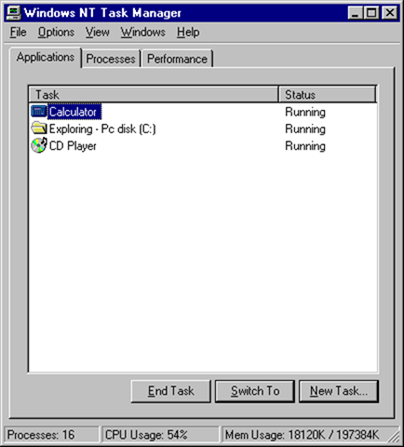
WINDOWS NT TASKMANAGER


Gambar diatas merupakan Task Manager di Windows NT. Terlihat lebih modern. Tugasnya bukan saja hanya membunuh proses, tetapi dapat melihat seberapa proses tersebut berada di RAM. Bisa dilihat pada tab "Performance".

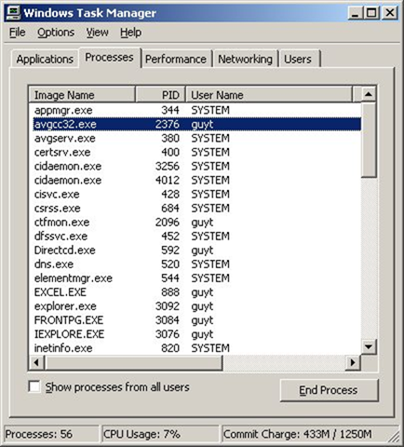
WINDOWS XP TASKMANAGER


Karena Task Manager di Windows NT hingga Windows 2000 tidak terlalu jauh berbeda, kita beralih ke Windows XP Task Manager. Gambar diatas merupakan Task Manager Windows XP. Terlihat, ada 2 tab baru yang dimasukkan, yaitu "Networking" dan "Users". Networking berguna untuk melihat koneksi Internet yang berjalan. Sedangkan Users, berguna untuk melihat pengguna komputer yang aktif.

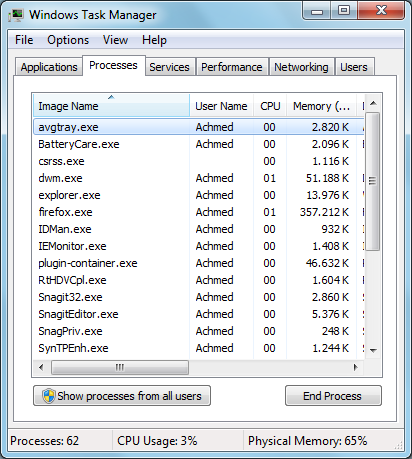
Yang Saya Banggakan Windows Seven TASKMANAGER


Gambar diatas adalah tampilan Task Manager Windows Vista dan Windows 7. Terlihat, ada 1 tab baru lagi, yaitu "Service". Berguna untuk melihat service apa saja yang berjalan.

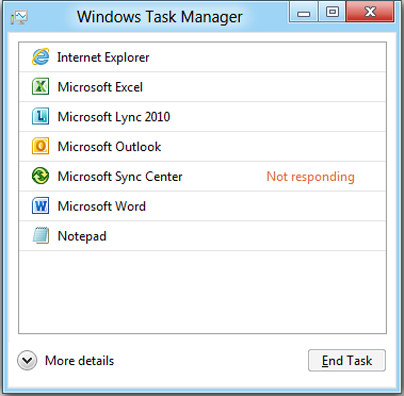
YANG SAYA INGIN GUNAKAN WINDOWS 8 TASKMANAGER
( Doa'in Ya Biar Bill Gates Mati Dan Windows Dibagikan Secara Gratis ) 


Gambar diatas adalah tampilan Task Manager untuk Windows 8. Terlihat sangat simpel. Tapi, jika kamu mengklik "More details", maka Windows 8 akan memunculkan informasinya secara lengkap, rapi, mudah dilihat dan dimengerti. Seperti dibawah ini:


Sangat lengkap sekali. Dan tambahan tab baru, yaitu "Startup". Berguna untuk melihat aplikasi apa saja yang berjalan saat Windows dihidupkan.


Kesimpulan
Microsoft terus berinovasi agar para penggunanya dapat dengan nyaman menggunakan Task Manager. Hingga Task Manager yang baru di Windows 8 sangat sempurna dan sangat detail.


Jadi Janganlah Membajak
READMORE
 

nProtect Gameguard Personal 3.0


Halo Sobat Semua !! Masih Sehat Kan ?? Komputernya Juga Sehat ?? Nanya Mulu Sih wkwkwkwkwk Pada Hari Ini Saya Akan Share Sebuah Antivirus Luar Negeri Yang Dapat Membersihkan Virus Yang Ada Di Komputer Anda Dan Menjaga Kualitas Gaming Komputer Anda ( Padahal Punya Saya Gak Kuat Main Game )


Fitur Pengelolaan Informasi Pribadi Yang Lebih Kuat

  • Melindungi produk dari perubahan atau penghapusan pilihan yang tidak perlu melalui fitur password administrator.


Hapus Permanen dan Enkripsi Aman

  • Enkripsikan atau hapus secara permanen file dengan informasi sensitif di dalamnya untuk menghindari kebocoran informasi.


Perlindungan Terhadap Malware

  • Scan dan hapus Rogueware / Grayware yang menampilkan deteksi palsu dari infeksi malware dari pengguna yang mengakibatkan tagihan atau pemasangan langsung sebuah program tanpa sepengetahuan pengguna.


Pengumpulan dan Laporan Contoh Malware Otomatis

  • Secara otomatis mengumpulkan dan mengirim file yang terindikasi malware dalam sistem pengguna.
  • Melaporkan file yang "Gagal Dibersihkan" setelah gagal membersihkan file
  • Menyediakan rangkuman dari laporan kepada pengguna


  • Melindungi sistem dari infeksi malware dengan memonitoring pengeksekusian, penggandaan, pemindahan file serta tindakan lainnya.
  • Secara otomatis memblok ActiveX Controls diinstal tanpa sepengetahuan pengguna.
  • Menghapus dengan sempurna ancaman tersembunyi dengan melakukan scanning memori secara periodik.
  • Memastikan sistem administrasi dan penggunaan minimal CPU serta memori yang stabil melalui teknik Multi-Threading.


  • Tachyon Engine, dikembangkan secara menyeluruh dari INCA Internet, menyediakan respon efisien terhadap malware melalui scanning dan perawatan.
  • Bekerja sama dengan engine terkemuka nomor 2 secara global (ICSA Labs, CheckMark, VB Certified) yang melakukan scanning 100% dari virus paling berbahaya.
  • Deteksi Proaktif yang melindungi sistem dengan melakukan scanning dari malware tak dikenal.


  • Melindungi diri dari infeksi malware dan perubahan/perusakan yang disengaja. Saat terinfeksi, program ini akan melakukan scanning terhadap dirinya sendiri dan memperbaikinya secara otomatis.
  • Saat file penting dari sebuah program, seperti engine atau pola anti-virus, rusak, program akan menyembuhkan dirinya sendiri dan menjaga keamanan sistem.

  • 70 ribu update-pola setiap bulannya dan merupakan database malware terbesar di Korea.
  • Mendukung update harian dan update darurat untuk perlindungan ancaman malware yang efisien.
  • Siap terhadap situasi darurat dari virus baru serta kode zero melalui monitoring 24-jam di seluruh dunia.

W0oOw Ternyata Banyak Juga Fitur Dan Kelebihannya Ya Dan Itulah Sebabnya Wastra-7 Memilih Antivirus Ini Sebagai Antivirus Saya

Download | Status : Used ( Windows 7 Ultimate ) | Link : Tested

Regards Wastra-7

Komentarlah Walau Itu Hanya Ngejunk


READMORE
 

Tema Untuk Chelsea FC Boys

Halo Sobat Semuanya !! Bagaimana Kabarnya ? Sehat Selalu Kan ?
Pada Hari Yang Cerah Sekaligus Hari Terakhir Dalam Liburan Sekolah Saya Ini
Saya Akan Share Theme Yang Menurut Saya Patut Untuk Anda Coba
Ya Tema Itu Adalah CHELSEA FC Klub Sepakbola Favorit Saya !!
Tema Ini Hanya Bisa Digunakan Di Windows Tujuh

Tanpa Basa Basi Nih SS Nya
Yang Mau Download Ke TKP

Regards Wastra Creativity

Komentarlah Walaupun Itu Hanyalah Ngejunk 
READMORE
 

Tema Untuk Pencinta Windows

Bagi Para Pecinta Windows 7 Seperti Saya Hendaknya Menggunakan Tema Yang Sudah wastra-7 Siapkan Untuk Sobat Semua

SS :

Silahkan unduh temanya disini
READMORE
 

Keyboard Shortcut Windows

Halo Semua Pada Hari Ini Di Tahun Baru Ini Saya Akan Menshare Keyboard Shortcut Pada Windows

Cara ini biasannya digunakan orang karena cara ini lebih cepat untuk mengakses ke menu tertentu

Langsung Saja Ya !!

Standar :

CTRL+C (Copy)

CTRL+X (Cut)

CTRL+V (Paste)

CTRL+Z (Undo)

DELETE (Delete)

SHIFT+DELETE (Delete the selected item permanently without placing the item in the Recycle Bin)

CTRL while dragging an item (Copy the selected item)

CTRL+SHIFT while dragging an item (Create a shortcut to the selected item)

F2 key (Rename the selected item)

CTRL+RIGHT ARROW (Move the insertion point to the beginning of the next word)

CTRL+LEFT ARROW (Move the insertion point to the beginning of the previous word)

CTRL+DOWN ARROW (Move the insertion point to the beginning of the next paragraph)

CTRL+UP ARROW (Move the insertion point to the beginning of the previous paragraph)

CTRL+SHIFT with any of the arrow keys (Highlight a block of text)

SHIFT with any of the arrow keys (Select more than one item in a window or on the desktop, or select text in a document)

CTRL+A (Select all)

F3 key (Search for a file or a folder)

ALT+ENTER (View the properties for the selected item)

ALT+F4 (Close the active item, or quit the active program)

ALT+ENTER (Display the properties of the selected object)

ALT+SPACEBAR (Open the shortcut menu for the active window)

CTRL+F4 (Close the active document in programs that enable you to have multiple documents open simultaneously)

ALT+TAB (Switch between the open items)

ALT+ESC (Cycle through items in the order that they had been opened)

F6 key (Cycle through the screen elements in a window or on the desktop)

F4 key (Display the Address bar list in My Computer or Windows Explorer)

SHIFT+F10 (Display the shortcut menu for the selected item)

ALT+SPACEBAR (Display the System menu for the active window)

CTRL+ESC (Display the Start menu)

ALT+Underlined letter in a menu name (Display the corresponding menu)

F10 key (Activate the menu bar in the active program)

RIGHT ARROW (Open the next menu to the right, or open a submenu)

LEFT ARROW (Open the next menu to the left, or close a submenu)

F5 key (Update the active window)

BACKSPACE (View the folder one level up in My Computer or Windows Explorer)

ESC (Cancel the current task)

SHIFT when you insert a CD-ROM into the CD-ROM drive (Prevent the CD-ROM from automatically playing)

Dialog Box Keyboard Shortcuts :

CTRL+TAB (Move forward through the tabs)

CTRL+SHIFT+TAB (Move backward through the tabs)

TAB (Move forward through the options)

SHIFT+TAB (Move backward through the options)

ALT+Underlined letter (Perform the corresponding command or select the corresponding option)

ENTER (Perform the command for the active option or button)

SPACEBAR (Select or clear the check box if the active option is a check box)

Arrow keys (Select a button if the active option is a group of option buttons)

F1 key (Display Help)

F4 key (Display the items in the active list)

BACKSPACE (Open a folder one level up if a folder is selected in the Save As or Open dialog box)

Microsoft Natural Keyboard Shortcuts :

Windows Logo (Display or hide the Start menu)

Windows Logo+BREAK (Display the System Properties dialog box)

Windows Logo+D (Display the desktop)

Windows Logo+M (Minimize all of the windows)

Windows Logo+SHIFT+M (Restore the minimized windows)

Windows Logo+E (Open My Computer)

Windows Logo+F (Search for a file or a folder)

CTRL+Windows Logo+F (Search for computers)

Windows Logo+F1 (Display Windows Help)

Windows Logo+ L (Lock the keyboard)

Windows Logo+R (Open the Run dialog box)

Windows Logo+U (Open Utility Manager)

Microsoft Internet Explorer Navigation :

CTRL+B (Open the Organize Favorites dialog box)

CTRL+E (Open the Search bar)

CTRL+F (Start the Find utility)

CTRL+H (Open the History bar)

CTRL+I (Open the Favorites bar)

CTRL+L (Open the Open dialog box)

CTRL+N (Start another instance of the browser with the same Web address)

CTRL+O (Open the Open dialog box, the same as CTRL+L)

CTRL+P (Open the Print dialog box)

CTRL+R (Update the current Web page)

CTRL+W (Close the current window)

Accessibility Keyboard Shortcuts :

Right SHIFT for eight seconds (Switch FilterKeys either on or off)

Left ALT+left SHIFT+PRINT SCREEN (Switch High Contrast either on or off)

Left ALT+left SHIFT+NUM LOCK (Switch the MouseKeys either on or off)

SHIFT five times (Switch the StickyKeys either on or off)

NUM LOCK for five seconds (Switch the ToggleKeys either on or off)

Windows Logo +U (Open Utility Manager)

Windows Explorer Keyboard Shortcuts :

END (Display the bottom of the active window)

HOME (Display the top of the active window)

NUM LOCK+Asterisk sign (*) (Display all of the subfolders that are under the selected folder)

NUM LOCK+Plus sign (+) (Display the contents of the selected folder)

NUM LOCK+Minus sign (-) (Collapse the selected folder)

LEFT ARROW (Collapse the current selection if it is expanded, or select the parent folder)

RIGHT ARROW (Display the current selection if it is collapsed, or select the first subfolder)

Shortcut Keys for Character Map :

RIGHT ARROW (Move to the right or to the beginning of the next line)

LEFT ARROW (Move to the left or to the end of the previous line)

UP ARROW (Move up one row)

DOWN ARROW (Move down one row)

PAGE UP (Move up one screen at a time)

PAGE DOWN (Move down one screen at a time)

HOME (Move to the beginning of the line)

END (Move to the end of the line)

CTRL+HOME (Move to the first character)

CTRL+END (Move to the last character)

SPACEBAR (Switch between Enlarged and Normal mode when a character is selected)

Microsoft Management Console (MMC) Main Window Keyboard Shortcuts :

CTRL+O (Open a saved console)

CTRL+N (Open a new console)

CTRL+S (Save the open console)

CTRL+M (Add or remove a console item)

CTRL+W (Open a new window)

F5 key (Update the content of all console windows)

ALT+SPACEBAR (Display the MMC window menu)

ALT+F4 (Close the console)

ALT+A (Display the Action menu)

ALT+V (Display the View menu)

ALT+F (Display the File menu)

ALT+O (Display the Favorites menu)

MMC Console Window Keyboard Shortcuts :

CTRL+P (Print the current page or active pane)

ALT+Minus sign (-) (Display the window menu for the active console window)

SHIFT+F10 (Display the Action shortcut menu for the selected item)

F1 key (Open the Help topic, if any, for the selected item)

F5 key (Update the content of all console windows)

CTRL+F10 (Maximize the active console window)

CTRL+F5 (Restore the active console window)

ALT+ENTER (Display the Properties dialog box, if any, for the selected item)

F2 key (Rename the selected item)

CTRL+F4 (Close the active console window. When a console has only one console window, this shortcut closes the console)

Remote Desktop Connection Navigation :

CTRL+ALT+END (Open the m*cro$oft Windows NT Security dialog box)

ALT+PAGE UP (Switch between programs from left to right)

ALT+PAGE DOWN (Switch between programs from right to left)

ALT+INSERT (Cycle through the programs in most recently used order)

ALT+HOME (Display the Start menu)

CTRL+ALT+BREAK (Switch the client computer between a window and a full screen)

ALT+DELETE (Display the Windows menu)

CTRL+ALT+Minus sign (-) (Place a snapshot of the active window in the client on the Terminal server clipboard and provide the same functionality as pressing PRINT SCREEN on a local computer.)

CTRL+ALT+Plus sign (+) (Place a snapshot of the entire client window area on the Terminal server clipboard and provide the same functionality as pressing ALT+PRINT SCREEN on a local computer.)

Banyak Amat Ya ?! Ya Karena Itu Windows Mahal hehehehehehe

Terimakasih Wastra

Sumber : Dunia Komputer
READMORE
 

Windows Loader V 2.1.0

http://2.bp.blogspot.com/_9wGGERtNCGI/SrPqmwLRd7I/AAAAAAAAFI4/sNFoze6doOw/s400/Windows.7.Loader.v1.5.7.By.Daz.pngHalo Semua Tanpa Basa Basi Ini Dia Windows Loader V 2.1.0
Fungsi Windows Loader Ini Adalah Mambuat Windows Anda Menjadi Genuine Dimata Microsoft


OS Yang Bisa Digenuinekan :

  • Windows 7 Ultimate
  • Windows 7 Ultimate E
  • Windows 7 Professional
  • Windows 7 Professional E
  • Windows 7 Home Premium
  • Windows 7 Home Premium E
  • Windows 7 Home Basic
  • Windows 7 Starter
  • Windows 7 Starter E
  • Windows Vista Ultimate
  • Windows Vista Business
  • Windows Vista Business N
  • Windows Vista Home Premium
  • Windows Vista Home Basic
  • Windows Vista Home Basic N
  • Windows Vista Starter
  • Windows Server 2008 Enterprise
  • Windows Server 2008 Foundation
  • Windows Server 2008 Standard
  • Windows Small Business Server 2008
  • Windows Storage Server 2008 Standard
  • Windows Server 2008 R2 Enterprise
  • Windows Server 2008 R2 Foundation
  • Windows Server 2008 R2 Standard
  • Windows Small Business Server 2011 Standard
Download ( Mediafire ) | Password : wastra-7.blogspot.com | Virus : Clean ( KIS 2012 ) | Status : Tested Windows 7 Ultimate
READMORE
 

Rainbow Link

My Facebook